Starting a run
A run is one go through the workflow, from the trigger to the end.
Why it mattersTrying it on pretend data shows problems before anything real is touched.
How to do it
- Step 1: In Build, press Run. Or go to the Run stage and press New run (or Start a run the first time).
- Step 2: Watch the steps light up on the canvas, one after another.
- Step 3: If it stops at an approval gate, decide. See Approval gates.
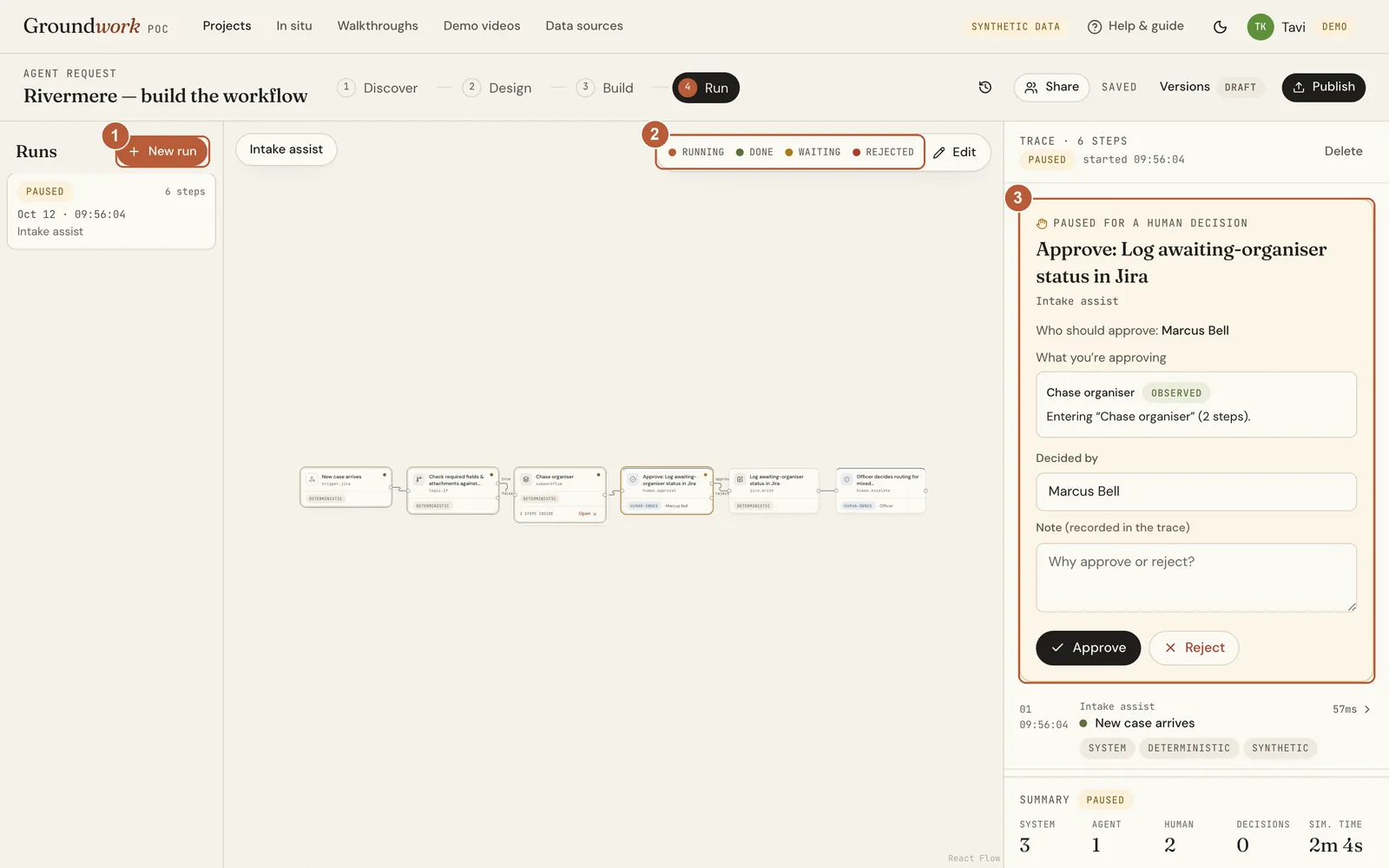
Demo onlySteps read the pretend Jira and Confluence. Writes are dry runs. Times are simulated, so a “2 minute” wait takes a moment.
What the colours mean
As the run goes, each step gets a coloured dot. The legend at the top of the canvas (marker 2) explains them.
| Colour | Means |
|---|---|
| Running | This step is happening now. |
| Done | This step finished. Approved steps are green too. |
| Waiting | This step is waiting for a person to decide. |
| Rejected | A person said no, or the step failed. |
Approval gates
An approval gate is a step that pauses the run until a named person says yes or no.
Why it mattersAnything that changes a real system should be agreed by a person first.
An approval gate is a “stop and ask a grown-up” sign.
How to do it
- Step 1: Read What you’re approving. It shows what the steps before produced.
- Step 2: Check Who should approve. Under Decided by, put your name if it isn’t there.
- Step 3: Write a Note. It is recorded in the trace.
- Step 4: Press Approve to carry on. Or press Reject to stop the run.
Reading the trace
The trace is the run’s diary. It lists every step: when it ran, who did it, how much the robot did alone, and how sure the result is.
Why it mattersIf something goes wrong, the trace shows exactly where and who.
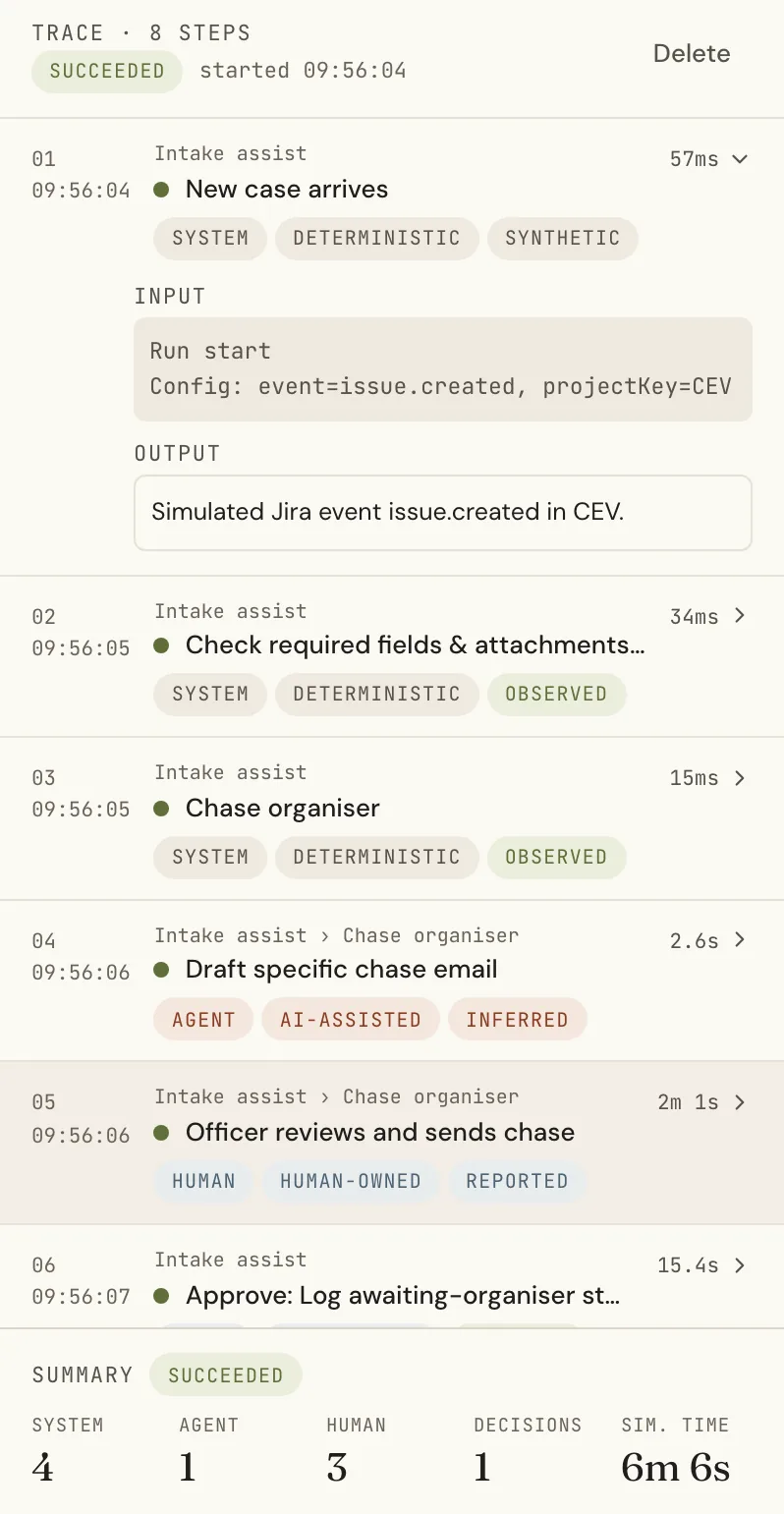
- Each row has three chips: who acted (System, Agent or Human), the autonomy level, and an evidence label.
- The grey line above the name shows where it ran, such as “Intake assist › Chase organiser”.
- Press a row to see its Input and Output.
- The Summary at the bottom counts the steps and decisions.