Sharing a project
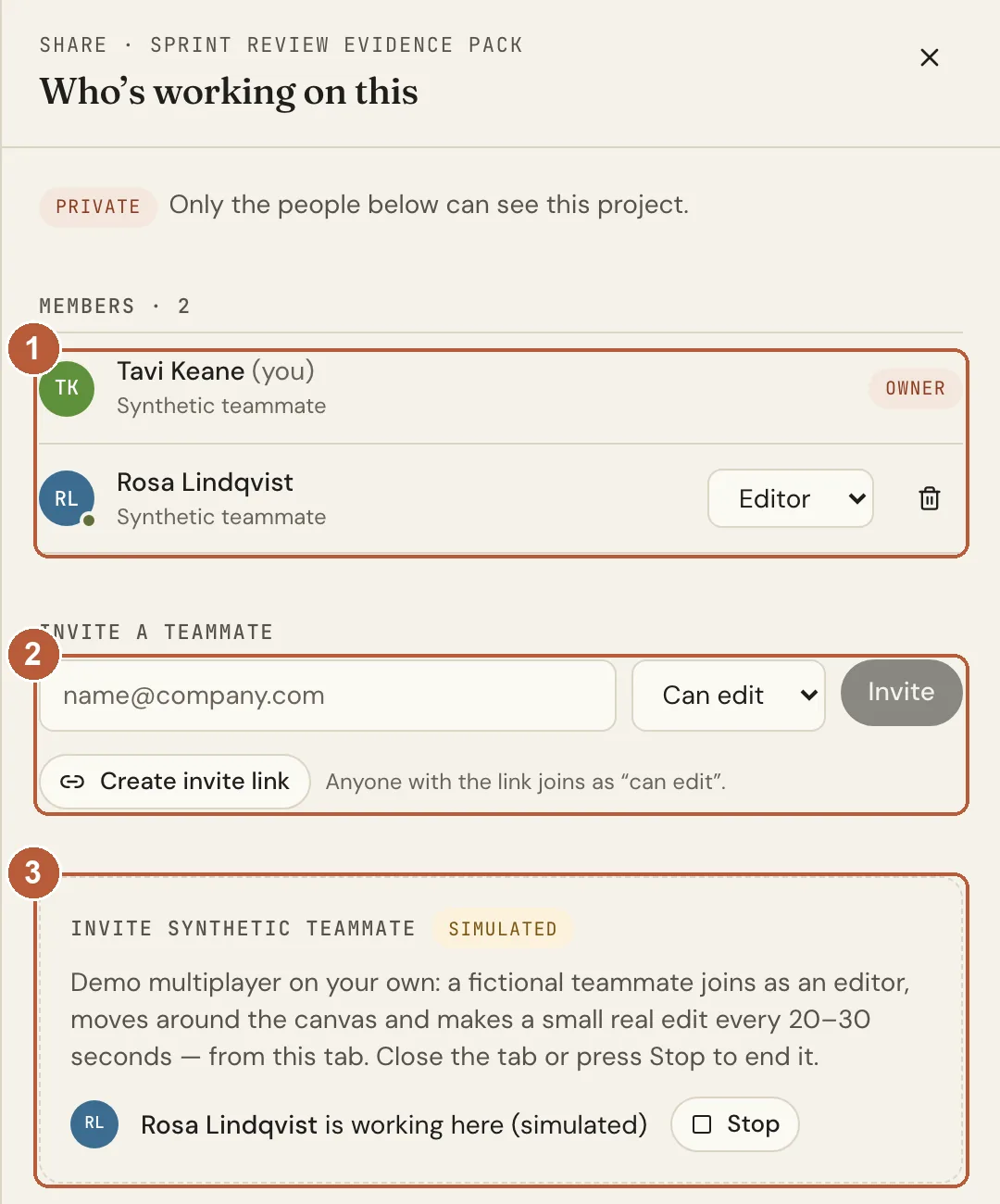
Share opens a panel called “Who’s working on this”. It lists the members and lets you invite more.
Why it mattersDiscovery needs more than one view. The people who live with the problem should be able to see the work.
How to do it
- Step 1: In the project bar, press Share.
- Step 2: To invite someone, type their email, choose Can edit or Can view, and press Invite.
- Step 3: Or press Create invite link, then Copy, and send the link. Anyone with it joins with the role you chose.
- Step 4: To change someone’s role, use the drop-down next to their name. To remove them, press the bin.
Who can do what
Each member has a role. The role decides what they can do.
| Role | Can look | Can edit | Can invite | Can manage members and delete |
|---|---|---|---|---|
| Owner | Yes | Yes | Yes | Yes |
| Editor | Yes | Yes | Yes | No |
| Viewer | Yes | No | No | No |
- Projects you create or copy are private. You are the owner.
- The demo projects are a shared practice space. Anyone can look. Anyone signed in can edit. Restore demo data resets them.
- Signed out, or a viewer? You’ll see a View only chip in the project bar.
Seeing who’s here
When teammates are in the same project, their initials appear in the project bar. On the Build canvas you see their pointer move, with their name.
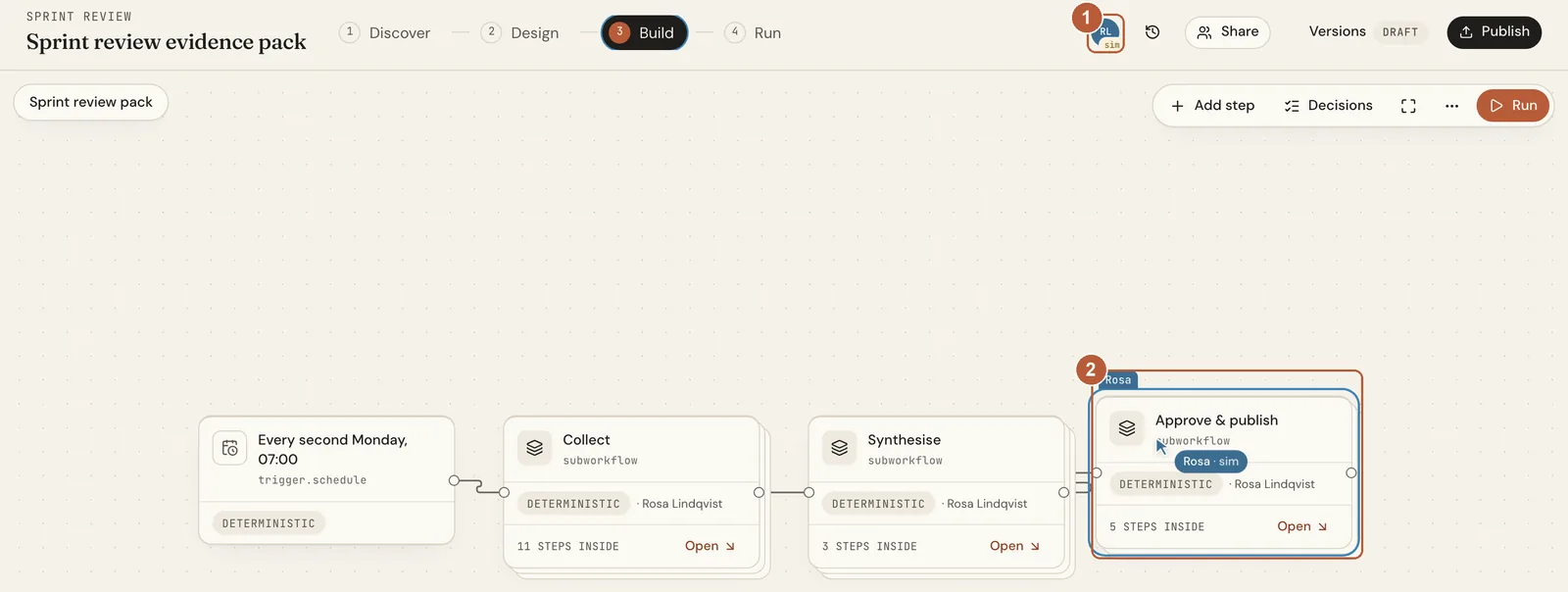
- A coloured ring around a stage button shows a teammate is on that stage.
- A step outlined in someone’s colour is the one they have selected.
- Small messages at the bottom tell you when someone changes something.
Recent activity
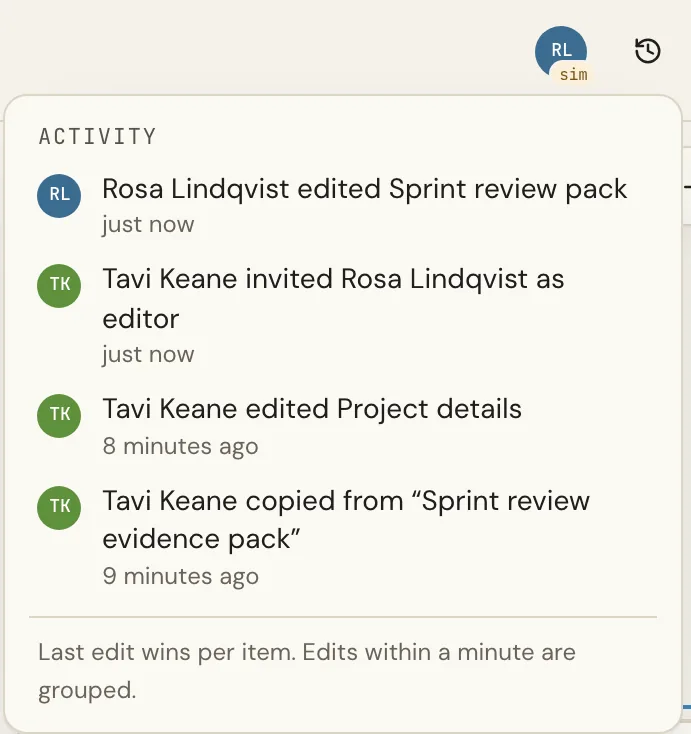
The clock button in the project bar lists recent changes: who did what, and when.
The pretend teammate
Want to show teamwork on your own? Invite a synthetic teammate. They join, move around the canvas, and make a small real change every 20–30 seconds.
How to do it
- Step 1: Open Share.
- Step 2: Under Invite synthetic teammate, pick a person.
- Step 3: Press Invite & start.
- Step 4: Close the panel and watch the canvas.
- Step 5: To end it, open Share and press Stop, or close the tab.
Demo onlyThis teammate is simulated. It runs only in your browser tab and is labelled “sim”. Its changes are real changes to this project, so try it on your own copy.