Signing in
Anyone can look around without signing in. To make or change anything, Groundwork needs to know who you are.
Why it mattersEvery change and every decision is recorded with a name. That is how people can trust it later.
There are two ways in. You can use your own account. Or, for a demo, you can borrow a made-up teammate.
How to do it
- Step 1: Press Sign in at the top right of any page.
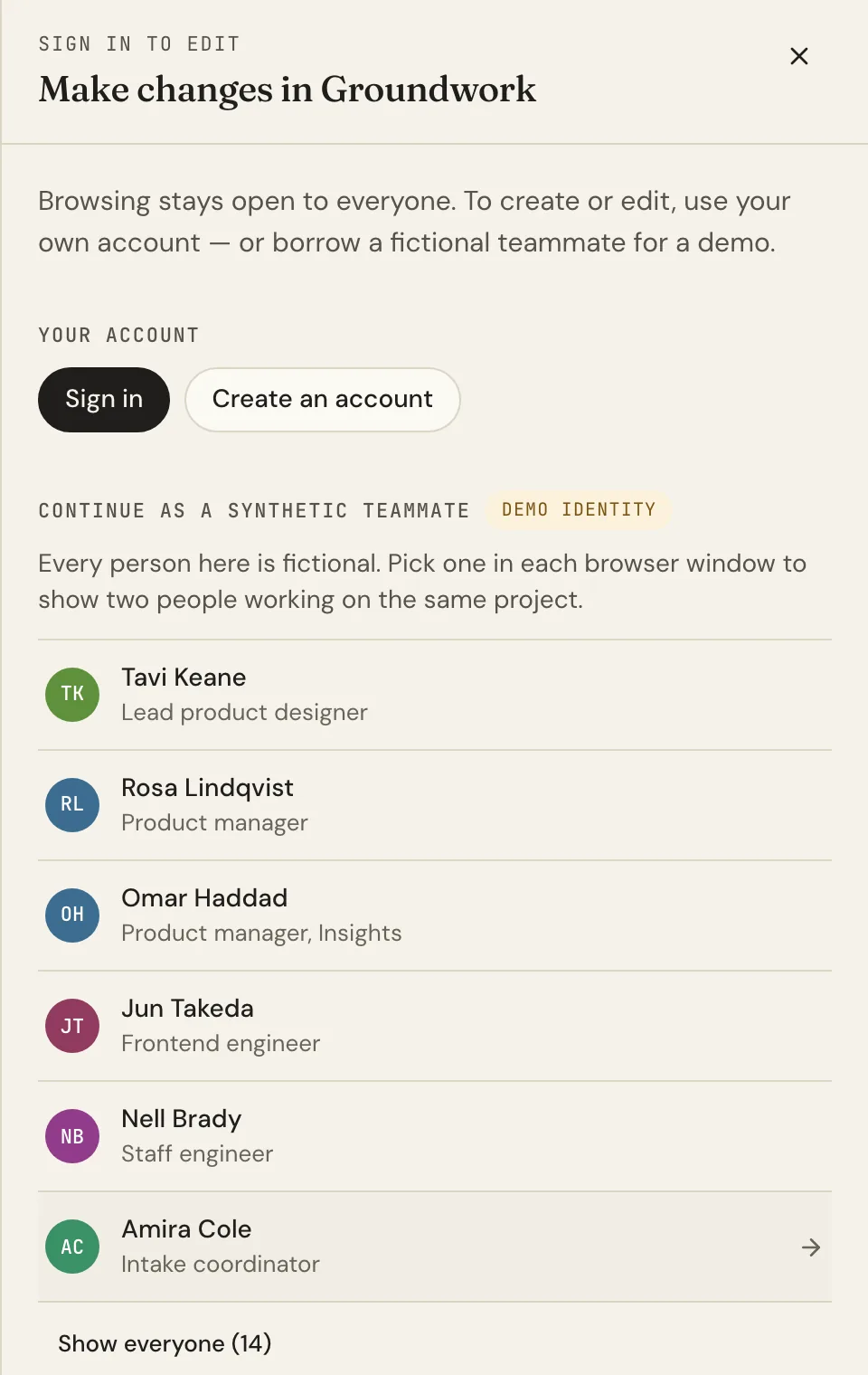
- Step 2: A panel opens. It is called “Make changes in Groundwork”.
- Step 3: To use your own account, press Sign in or Create an account.
- Step 4: Or, under Continue as a synthetic teammate, press a person’s name. For example, Tavi Keane.
- Step 5: The page reloads. Your initials now sit at the top right, with a Demo chip if you borrowed a teammate.
Your account menu
Once you’re in, your initials appear at the top right. Press them to open your menu.
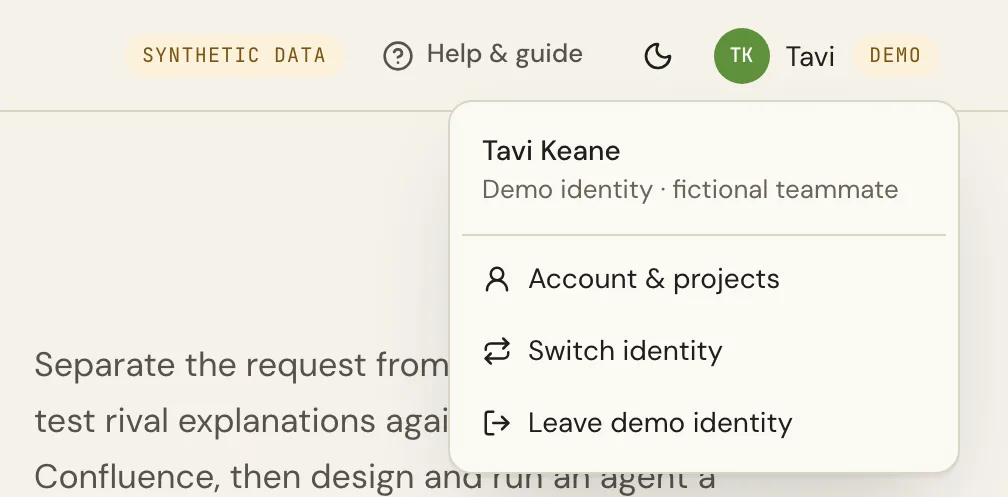
- Account & projects lists your own projects and the ones shared with you.
- Switch identity lets you become a different pretend teammate.
- Leave demo identity (or Sign out) signs you out. You can still look around.
The menu at the top
The bar at the top of every page takes you to the main places in the app.

- Marker 1: the main pages. Projects is home. It only appears once you have signed in or picked a pretend teammate. Before that, the Groundwork name takes you home. In situ shows published agents working inside a pretend company tool. Walkthroughs and Demo videos teach you by showing. Data sources lets you browse the pretend Jira, Confluence and people.
- Marker 2: Synthetic data reminds you that everything is pretend.
- Marker 3: Help & guide opens this guide.
- Marker 4: the moon or sun button switches between dark and light colours.
- Marker 5: your account menu, or Sign in if you’re not signed in.
The home page (your library)
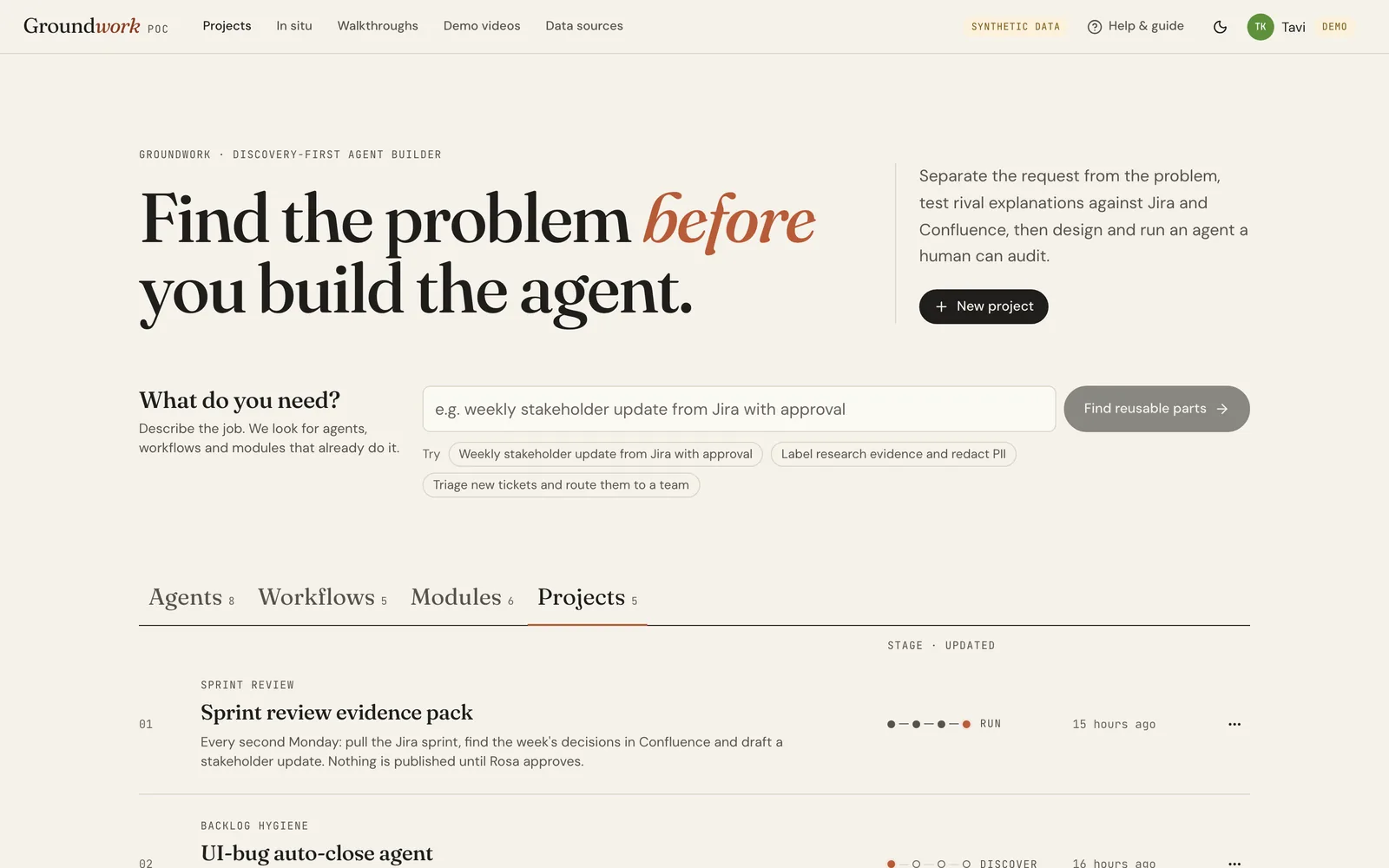
The home page shows everything that already exists. It is a library you can reuse from.
Why it mattersSomeone may have built what you need already. Checking first saves you work.
- Not signed in yet? The home page opens with a 45-second intro video. It plays without sound, with captions on. Press Unmute to hear it. Then press Try the demo to borrow a pretend teammate, or Sign up for your own account.
- Signed in? The video folds away. Press Watch the 45-second intro to see it again.
- New project starts something new. See Starting a project.
- What do you need? searches the library by describing a job. See Reuse search.
- The tabs Agents, Workflows, Modules and Projects list what exists. Each project shows four dots for its stage, and when it was last changed.
- Press a project’s name to open it. It opens on the stage it has reached.
Inside a project
When you open a project, a second bar appears under the top bar. It is the same on every stage.

- Marker 1: the four stages. The dark one is where you are. Press another to go there.
- Marker 2: the small ? opens the chapter of this guide for the stage you’re on. On wide screens it says How does this work?.
- Marker 3: the clock shows recent activity: who changed what. See Working with teammates.
- Marker 4: Share lets other people in. See Sharing.
- Marker 5: Versions opens the history of published versions. The chip says Draft or which version is live.
- Marker 6: Publish sends your work for review. It says Review when a version is waiting. See Publish & versions.